How to Identify Anonymous Website Visitors (2026)
How to identify anonymous website visitors in 2026: install the tag, capture what visitors share, stack data providers, filter out ISPs and bots, and route each match by confidence.
By Imran Patel, Co-founder and CEO, Syft DataUpdated 11 min read
You can identify many anonymous B2B website visitors at the company level, and some US visitors by name, once a tag on your site feeds several data providers and you filter what they return. How far you can trust each match depends on your setup, especially how you filter what the providers return.
Most of the work goes into catching bad matches before they reach sales, because a rep who trusts one provider's guess can end up emailing someone who left that company. The steps below build the setup in order, and the table shows what each one adds.
| Step | What you set up | What you get |
|---|---|---|
| 1. Install the tag | One snippet on your site, docs and app | Every visit recorded and joined into one journey |
| 2. Capture what visitors share | Form capture, sign-up enrichment, personalized links | Names you can confirm |
| 3. Stack providers | A waterfall of identification providers | Company and person matches, each with a confidence label |
| 4. Filter the noise | Exclusions for ISPs, bots, your team, customers and competitors | A shorter list of accounts that fit your ICP |
| 5. Route by confidence | Slack, your CRM and retargeting lists | The right next action for each match |
What can you learn from anonymous website traffic before adding visitor identification?
Google Analytics 4 already tells you which pages people read, where they came from, what device they used, and roughly where they are. Google's terms bar you from sending personally identifiable information into GA4, and it doesn't report the company behind a visit, which leaves you with behavior and no names or companies. That's enough for content and channel questions. A B2B team mostly wants to know which accounts read the pricing page this week, and answering that takes at least the company level in the table below.
| Level | What you learn | Where it comes from | Main limit |
|---|---|---|---|
| Analytics | Pages, sources, device, rough location | GA4 or any analytics tag | Shows behavior with no identity |
| Company | The organization behind the visit | IP and network data matched by a provider | Home Wi-Fi, mobile networks and VPNs hide the employer |
| Person | A suggested name, title and email | Identity graphs, mostly for US visitors | A probability, which someone has to check |
| Known contact | A confirmed person | A form, sign-up, login or personalized link | Needs the visitor to act |
Each row down the table takes more setup and covers fewer visitors, and even the company level depends on how much of your traffic arrives through home, mobile and VPN connections. Use the company level to see which accounts are active, and save person-level matches for accounts that already fit your ICP.
Can website visitors be identified by name?
Website visitors can be identified by name when they share their details with you, or when a provider's identity graph matches them, which mostly works for US visitors. The first route covers a form someone fills in or abandons halfway, a sign-up through Google or Microsoft, a login, and a click on a personalized link from your email or LinkedIn outreach. Each of these ties the session to a real person, and a personalized link also connects that person to their past and future visits.
An identity graph is a provider's database that links browsers, devices, and IP addresses to people, and its matches arrive as a best guess. Because of that, Syfty (formerly Syft Data) sorts every identity under a label:
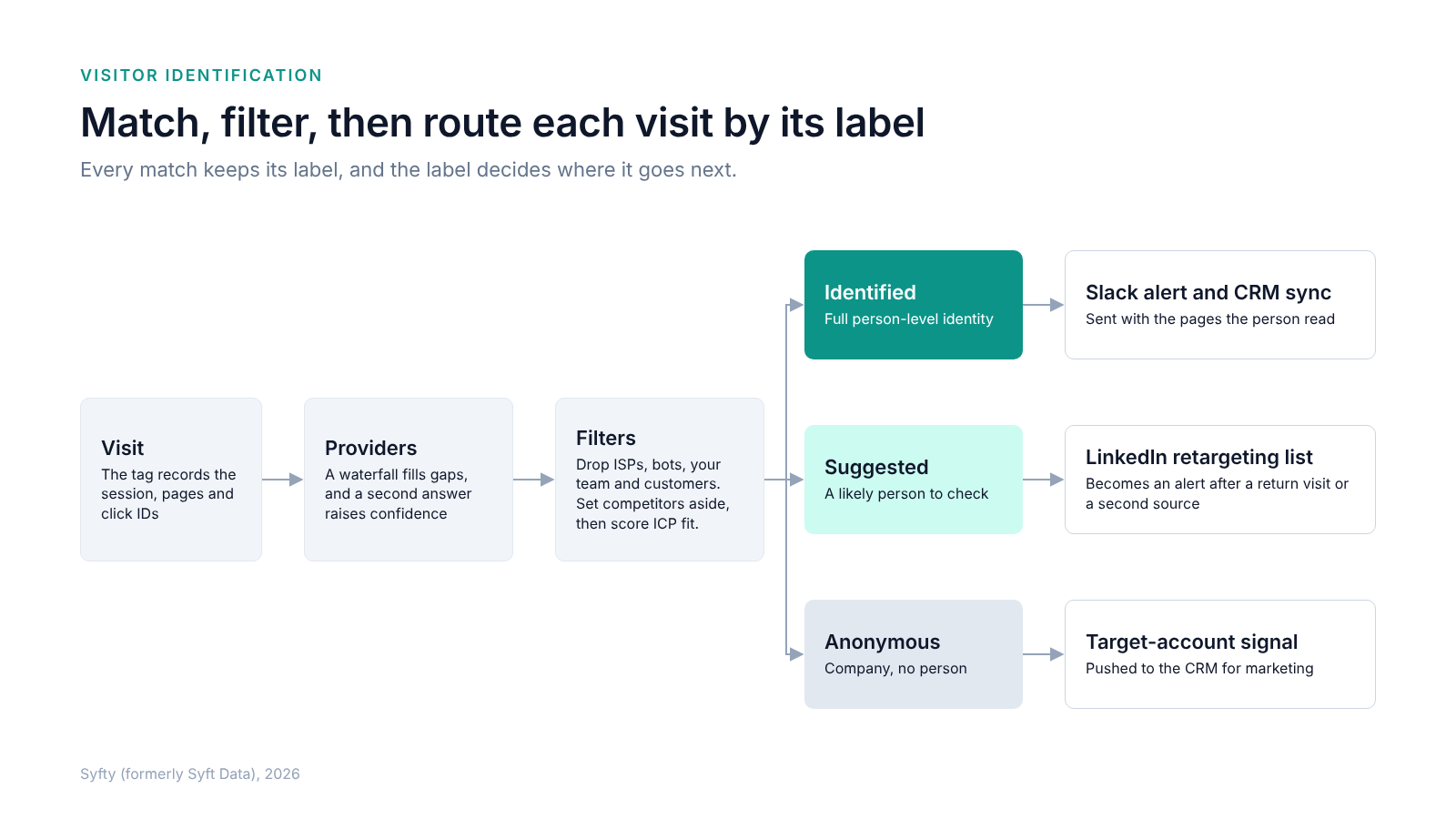
- Identified: a full person-level identity, with name, title, company, and email.
- Suggested: a likely person proposed by Syfty's matching, which your team treats as a lead to check.
- Anonymous: the company, and sometimes the role, with no person attached.
Keep those labels attached all the way to the alert, because sales will act on whatever reaches them as if every detail were true. A suggested match should reach a rep marked as suggested, or wait until more evidence arrives.
Step 1: Install a visitor identification tag on every site your buyers use
Paste the snippet into the <head> of your marketing site, then add it to your docs, your app, and any other property where prospects show up. A buyer might read your pricing page on Monday and three docs pages on Thursday, and you'll only see one journey when the same tag runs on both. Most stacks have a direct install path, including Google Tag Manager, Webflow, Next.js, and Docusaurus, and the Syfty docs put the whole install at under five minutes.
Before you publish, connect the tag to your consent platform; Syfty works with TCF-compliant tools such as Cookiebot, which lets you respect each visitor's choice in markets that require consent. Use the current pinned snippet, since it carries a version number and an integrity hash, and the browser refuses to run the script if anyone tampers with the file.
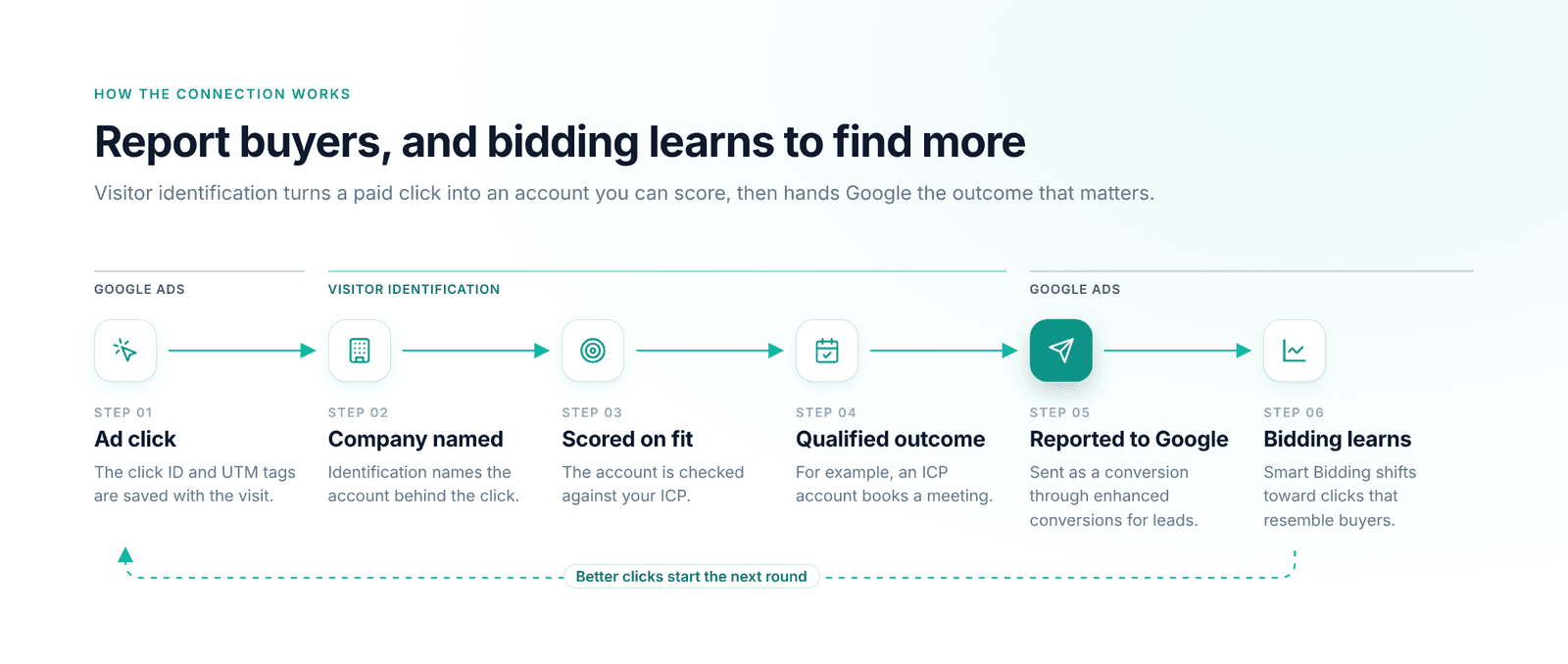
To confirm the install, open Chrome DevTools on your site, go to the Network tab and look for requests to e2.sy-d.io. Once they appear, page views, link clicks and form entries are flowing. Keep the click IDs and UTM parameters on your ad links as well, because the tag captures them with each visit, and that's what links a paid campaign to the accounts it brought in.
Step 2: Identify visitors from forms, sign-ups and personalized links
The most reliable names on your site come from visitors who typed them in. Turn on form capture, which records the name and email from your lead and sign-up forms, including forms someone starts and leaves before submitting. It skips passwords, card numbers and other sensitive fields. If your product lets people sign up with Google or Microsoft, add the identification call to that flow. Personalized links in your email and LinkedIn follow-up then connect later visits to the person who clicked.
An email address gets you started, and you still need a company and a title before anyone can judge whether the person fits. Enrichment vendors fill those in, and the type of address decides how far you can trust what they return.
In our email enrichment benchmark, we gave six vendors the emails of 986 people who filled in forms on B2B websites, most of them run by tech companies. We then compared each answer with the details that person had entered.
On work emails, a common five-vendor waterfall returned a name and company 66% of the time, with 85% of those answers correct. On personal addresses such as Gmail, the same waterfall returned a name and company for 49% and got only 17% of those correct. On personal emails, the name alone was right far more often, at 80%, which suggests vendors often find the right person but attach an outdated or wrong employer. Per 100 emails, that works out to about 56 right answers for work addresses and about 8 for personal ones.
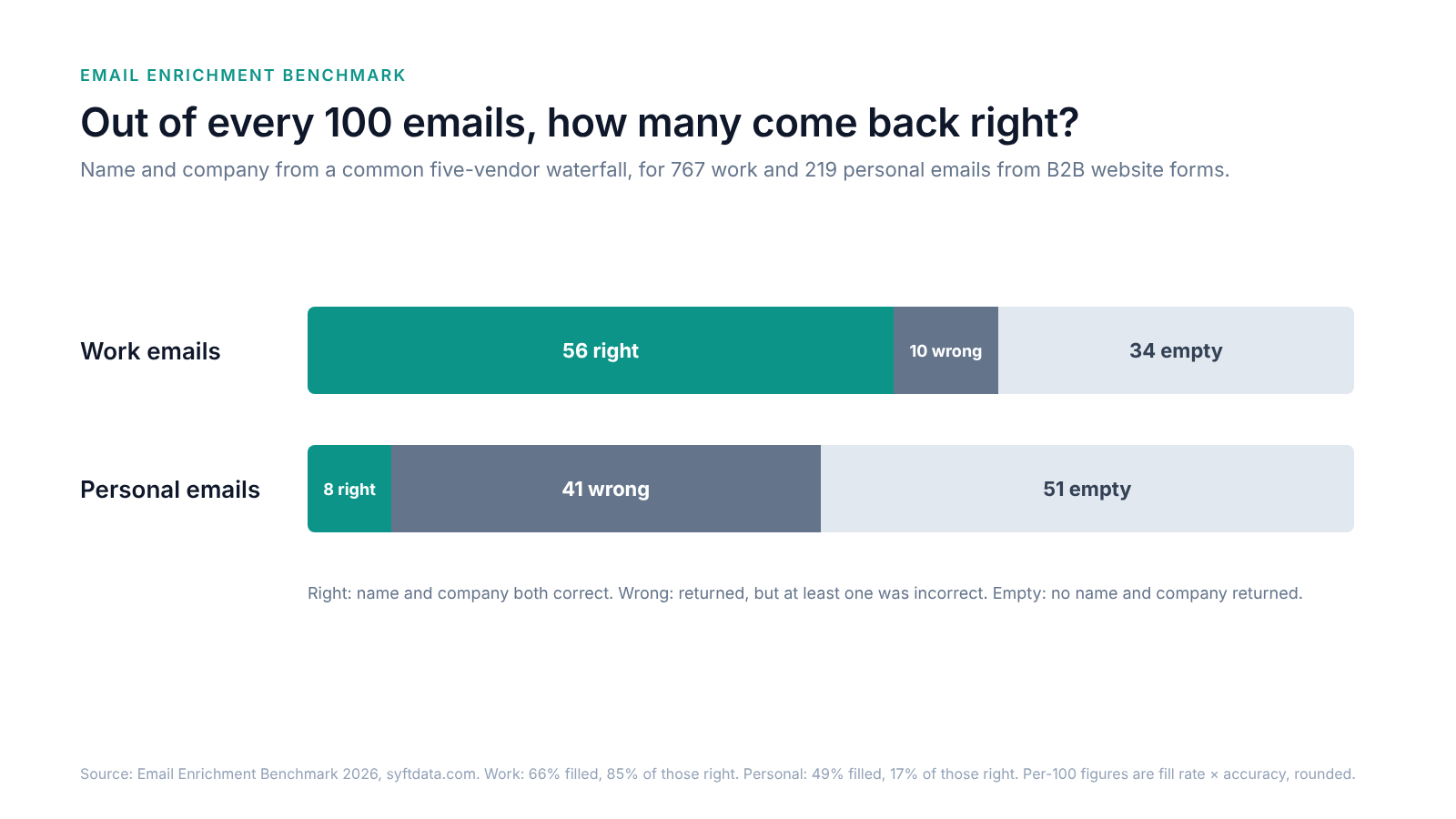
Treat an enriched Gmail address as a suggestion until another signal backs it up, such as a work-email sign-up later in the trial or a matching answer from a second provider. A work address that enriches cleanly can go straight to scoring against your ICP.
Step 3: Stack providers in a visitor identification waterfall
Each identification provider builds its database from different sources, and each one covers some visitors well and others poorly. The table shows what a few common providers contribute.
| Provider | Level | Where its data comes from |
|---|---|---|
| Clearbit (now HubSpot's Breeze Intelligence) | Company by IP; contacts through enrichment inside HubSpot | Its own company and contact database |
| People Data Labs | Company and contact | Its own company and person datasets, plus IP location data |
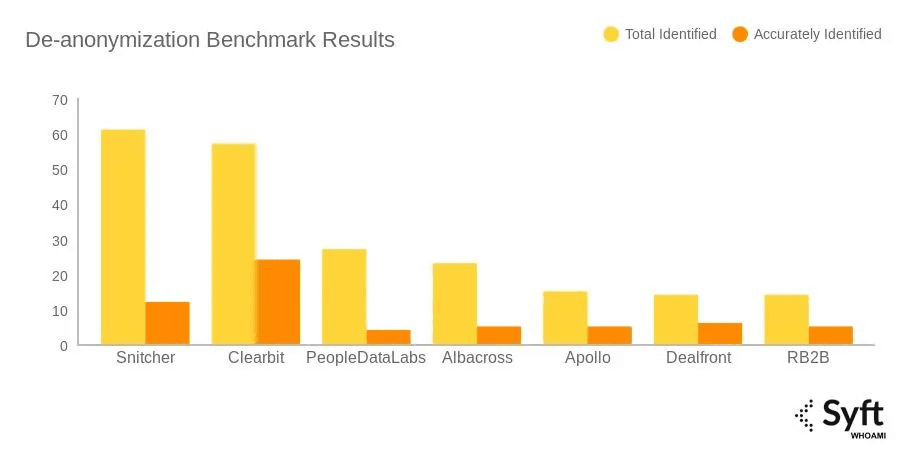
| RB2B | Person for US visitors only; company elsewhere on paid plans | Its own identity graph |
| Snitcher | Company by IP; person from first-party capture | IP intelligence plus forms and email links |
| Demandbase | Company | IP and cookie data |
A waterfall queries providers in a fixed order and moves to the next one when a lookup comes back empty, which fills gaps in coverage. The order you choose also changes what comes back.
In the same enrichment benchmark, we tested the six vendors in every one of their 720 possible orders, and order alone moved accuracy anywhere from 73% to 79%. The order that scored best on work emails was a different one from the order that scored best on personal emails.
The common setup from Step 2 fared poorly, too: 110 of the other 119 orders of its five vendors produced fewer wrong companies than it did. Our benchmark covered enrichment vendors, and the same check is worth running on identification providers: test your order against the kind of traffic you get, and revisit it when your mix changes.
Because a waterfall stops at the first answer it gets, you raise confidence by sending the same visit to a second provider and comparing what comes back. When two providers return one company for the same visit, you can route that match with more confidence, and when they disagree, the visit stays suggested until more evidence arrives. Providers sometimes license the same upstream data, and two answers that trace back to one source count as a single signal.
Teams run this step in one of a few ways, and the table compares what each one leaves for you to maintain.
| Setup | What you get | What you maintain | Effort |
|---|---|---|---|
| One provider, such as RB2B on its own | A single answer per visit, with person-level matches for US visitors | Your alert rules and your own spot checks | Lowest: install the tag and set alert rules |
| A waterfall you build in Clay | Several providers queried in the order you choose | The comparison rules, the provider order, and your credit balance | Highest: Clay credits, API keys for any provider you bring yourself, and ongoing hours on the logic |
| Syfty | Several providers queried in a waterfall, labeled and routed for you, with RB2B available as one more provider on your Syfty credits | Your ICP and your routing choices | Install the tag, then set your ICP and routes |
Step 4: Filter out ISPs, bots, and known visitors from visitor identification
Many raw matches point at internet providers, bots or people you already know. Visits through home broadband from Comcast or Verizon, and through cloud hosts like AWS, often resolve to the company that owns the network. An alert saying a cloud provider read your pricing page gives your team nothing to act on. Exclude those networks from your alerts, along with known bots, crawlers and monitoring services.
Next, take out your own team and your existing customers, who log in to the app and show up as matches every week. Competitors studying your pricing also appear, and they belong on a separate list for your product marketing team. Then score what remains against your ICP. A Series B security company, for example, might keep US and EU software companies with 50 to 1,000 employees and hold back everything else.
Students and job seekers read many of the same pages buyers read, which is one more reason to filter hard on ICP fit before anything reaches a rep. Our pipeline guide explains what that filter should drop and why it matters.
Step 5: Route identified website visitors by confidence
Send identified contacts at ICP accounts to the channel your team already watches, usually Slack, along with the pages they read. Sync them to HubSpot, Salesforce, Attio or Pipedrive as well, which keeps the history attached to the account. Keep suggested matches away from reps for now: export them to a LinkedIn Matched Audience for retargeting, and promote them to an alert when they come back or when a second source confirms them.
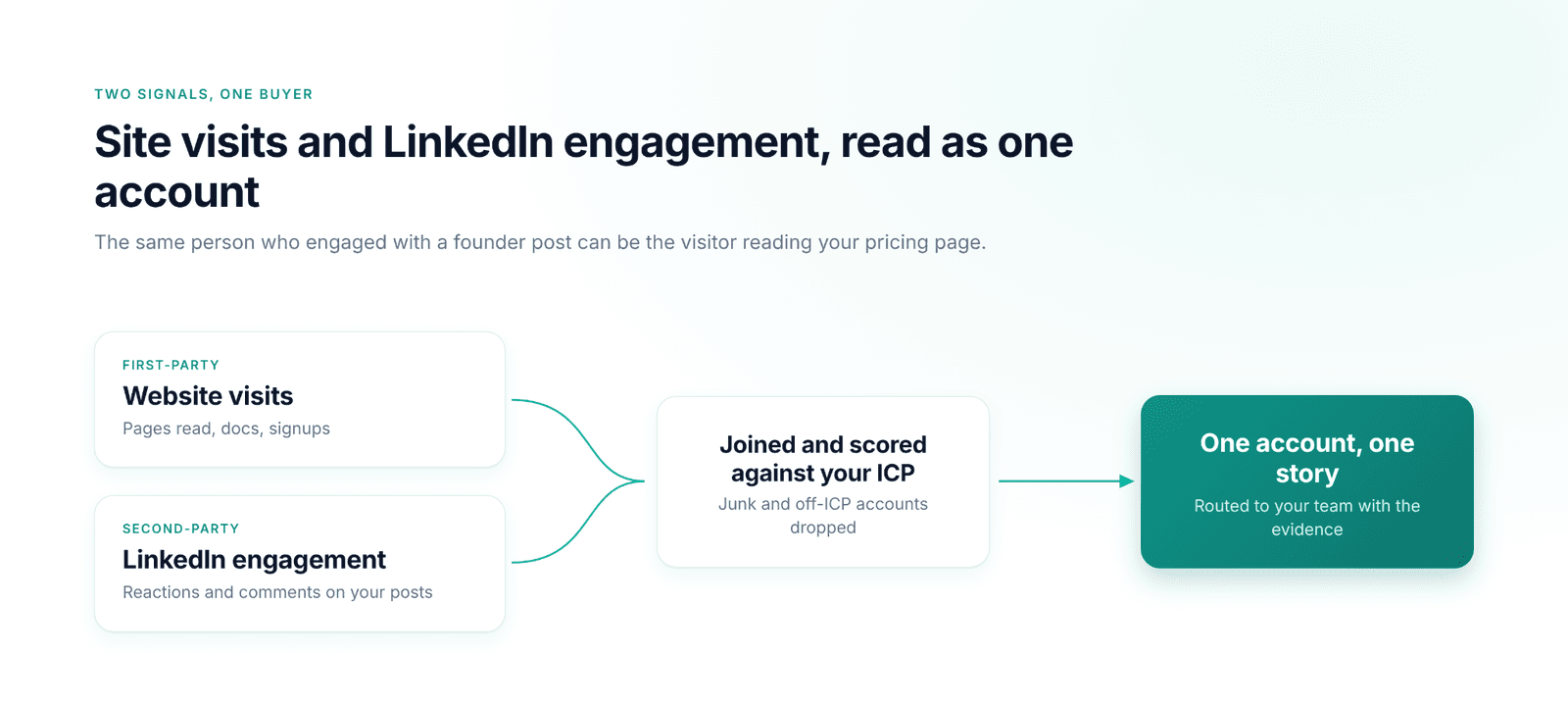
Company-level visits with no person attached are still useful. Push the account into your CRM as a target-account signal, and let marketing decide whether to run ads to that account or ask for a warm introduction. Before you hand the alert feed to sales, check that every match lands in one place with its label attached. The diagram below shows the full path from visit to alert.
Can you identify website visitors outside the US?
Person-level identity graphs mostly cover US traffic. RB2B, for example, names only US visitors at the person level, and on its Starter, Pro and Pro+ plans it reports visitors elsewhere at the company level. Syfty's person-level add-on is also limited to US visitors.
For visitors in the EU, the UK and elsewhere, plan around company-level matches and first-party capture. Those still give you the account, and they give you the person once someone fills in a form or clicks a personalized link. Privacy rules also vary by region, and our guide on whether visitor identification is safe covers those questions in more depth.
FAQ
Do I need a developer to set this up?
Most sites can skip the developer, since you paste one snippet into the site header or add it through Google Tag Manager. You'll want engineering help for sign-up enrichment, because that step adds an identification call to your product's sign-up flow.
Will the tag slow down my website?
The snippet loads asynchronously, which means the page renders without waiting for it, and it fails silently if anything goes wrong, which keeps a problem with the tag from breaking your page.
Can I run more than one visitor identification tool at once?
Yes, and stacking providers fills gaps in coverage while a second answer tells you which matches to trust. Run them through one tag where you can: Syfty's docs, for example, ask you to remove a standalone RB2B script once RB2B runs inside the Syfty tag.
Where to start
Give the setup a week of data before you judge it, then count how many of your matches two sources agree on. That share is a good first check on whether your alerts are ready for reps, and it gives you a baseline to improve as you tune the filters and the provider order.
Look at the suggested matches that never got confirmed as well, and if most of them come from one provider, move it down your waterfall or drop it. Syfty runs the tag, the provider waterfall, the labels, and the routing in one place if you'd like to start there.